CPU & GPU Quota
UZH JupyterHub tracks how long you use a server each week. Different hardware tiers — CPU and GPU — have separate time budgets. When your weekly budget runs out, your server is stopped and you cannot start a new one until the next calendar week.
How the quota system works
Every server profile belongs to a tier — either CPU or GPU (determined by the profile name). Each user also has a quota role. For personal servers that’s either user or admin, derived from your OLAT membership. For group servers which do not belong to one individual, it’s always collab:
- user — regular participants (the default).
- admin — course Owners (members of the
lti-adminsgroup). - collab — usage on a shared collaboration group server is counted under this role, separately from your personal usage.
See Roles, Groups & Collaboration for how OLAT roles map to JupyterHub.
The combination of tier and role determines your weekly time budget:
| Tier | Role | Typical default budget |
|---|---|---|
| CPU | user | 20 hours / week |
| GPU | user | 20 hours / week |
| CPU | admin | 20 hours / week |
| GPU | admin | 20 hours / week |
| CPU | collab | 20 hours / week |
| GPU | collab | 20 hours / week |
Actual values are configured per deployment and may differ from the defaults above.
The quota resets every Monday at 00:00 UTC. Usage from the previous week does not carry over.
What happens when you run out
- Your running server is automatically stopped when the remaining time reaches zero.
- Attempting to start a new server returns a 403 error with a message showing how much time you used.
- The budget resets at the start of the next calendar week.
Seeing your remaining time
On the server-selection page
When you log in and choose a server profile, a Quota status banner shows your remaining time for each available profile:
| Profile | Tier | Remaining | Total |
|---|---|---|---|
| Minimal environment | CPU | 18h 30m | 20h 0m |
| BME GPU Server | GPU | 20h 0m | 20h 0m |
Inside JupyterLab — profile switcher
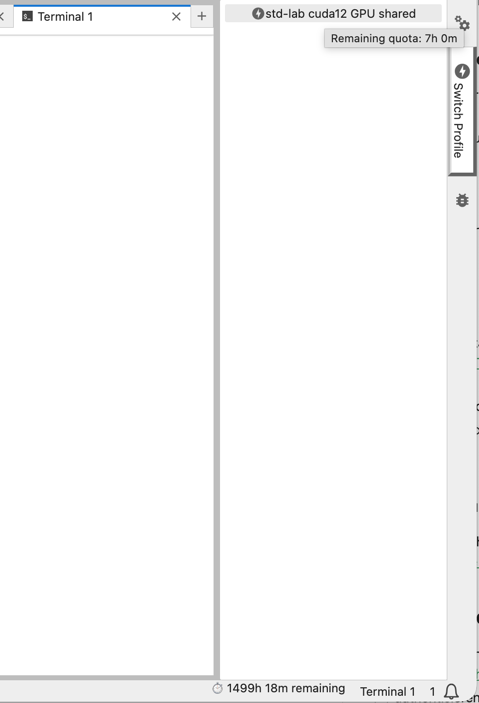
Once your server is running, the Switcher extension (a JupyterLab toolbar button) allows you to:
- View your remaining quota for the current profile
- Switch to another profile (if you have quota left on it) without stopping your server
The switcher displays an estimate of remaining time for the current and, as a mouse-over hover, other profile(s) - see the image below. A countdown timer runs in the background; your server is automatically stopped when time runs out.
What to do when your quota is used up
👩🎓 Participants:
- You cannot extend your own quota. If you run out, wait until Monday or ask your teacher to grant extra time.
- To make your budget last: stop your server when you are not actively working (use the Stop My Server button on the JupyterHub home page or the Start & Scale UI).
- Close idle notebook kernels — a running kernel keeps the server alive and consuming quota.
👩🏫 Owners / Coaches:
You can grant extra time to individual users via the Quota Admin UI (see below).
Quota Admin UI
👩🏫 Owners / Coaches:
Quota is managed on a dedicated Quota Admin page, which is separate from the JupyterHub Admin page (the Admin page only lists users and starts/stops their servers — it does not show quota). Reach the Quota Admin page via the Quota link in the JupyterHub navigation bar, or directly at <your-hub-url>/services/quota/admin. Access requires the quota-admin scope, granted automatically to OLAT course Owners and Coaches.
Viewing usage
The Usage table lists every user who has consumed quota in the current period:
| Username | Tier | Role | Used | Budget | Remaining | Extension |
|---|---|---|---|---|---|---|
| alice | cpu | user | 12h 30m | 20h 0m | 7h 30m | 1 h Grant |
| bob | gpu | user | 3h 15m | 20h 0m | 16h 45m | 1 h Grant |
Filter the list with the Filter by username field at the top.
Extending a user’s quota
To grant extra time to a user who has run out:
- Find the user in the Usage table.
- In that user’s Extension column, enter the number of additional hours.
- Click Grant.
This subtracts the granted hours from the user’s recorded usage, effectively giving them more time within the current period.
Adjusting budgets
Below the Usage table, the Budget configuration table lets you change the weekly time budget per tier and role. Each row has two editable fields — This week (h) and Next week (h) — and an Update button:
- This week — takes effect immediately for the current period.
- Next week — takes effect from the following Monday.
This allows you to, for example, increase the GPU budget for a week when students have a deadline, then let it revert to normal.
How quota is configured (deployment level)
Note: The values below are set by ZI when the course is deployed and are listed here for reference only. Owners and Coaches cannot change them, but can adjust the live budgets from the Quota Admin page (see above).
Default budgets
Default budgets are set via environment variables in the JupyterHub deployment:
| Variable | Description |
|---|---|
QUOTA_USER_CPU_S | Weekly CPU budget for regular users (in seconds) |
QUOTA_USER_GPU_S | Weekly GPU budget for regular users (in seconds) |
QUOTA_ADMIN_CPU_S | Weekly CPU budget for admins (in seconds) |
QUOTA_ADMIN_GPU_S | Weekly GPU budget for admins (in seconds) |
QUOTA_COLLAB_CPU_S | Weekly CPU budget for collaboration servers (in seconds) |
QUOTA_COLLAB_GPU_S | Weekly GPU budget for collaboration servers (in seconds) |
All default to 72 000 seconds (20 hours) if not set.