Troubleshooting
Most problems on a UZH JupyterHub server are Python dependency errors — a notebook cell fails with a long, intimidating traceback. This page turns that wall of text into a quick decision: what the error actually means, whether you can fix it yourself, and what to send us if you can’t.
👩🎓 Participants: Two of the four patterns below (Not installed and Wrong kernel) are usually self-fixable in under a minute. The other two are platform issues — report them to your Coach or to ZI.
👩🏫 Owners / Coaches: The card below is designed so you can triage a student’s error without any software expertise — you never have to read the whole traceback, just its last line.
The one rule
Ignore the scary headline. Read the last line of the traceback.
The first lines of a traceback describe where Python was when it gave up — often deep inside a library — and frequently name a component (like FFmpeg) that is a red herring. The last line says what actually went wrong. Match that last line to one of the four patterns below.
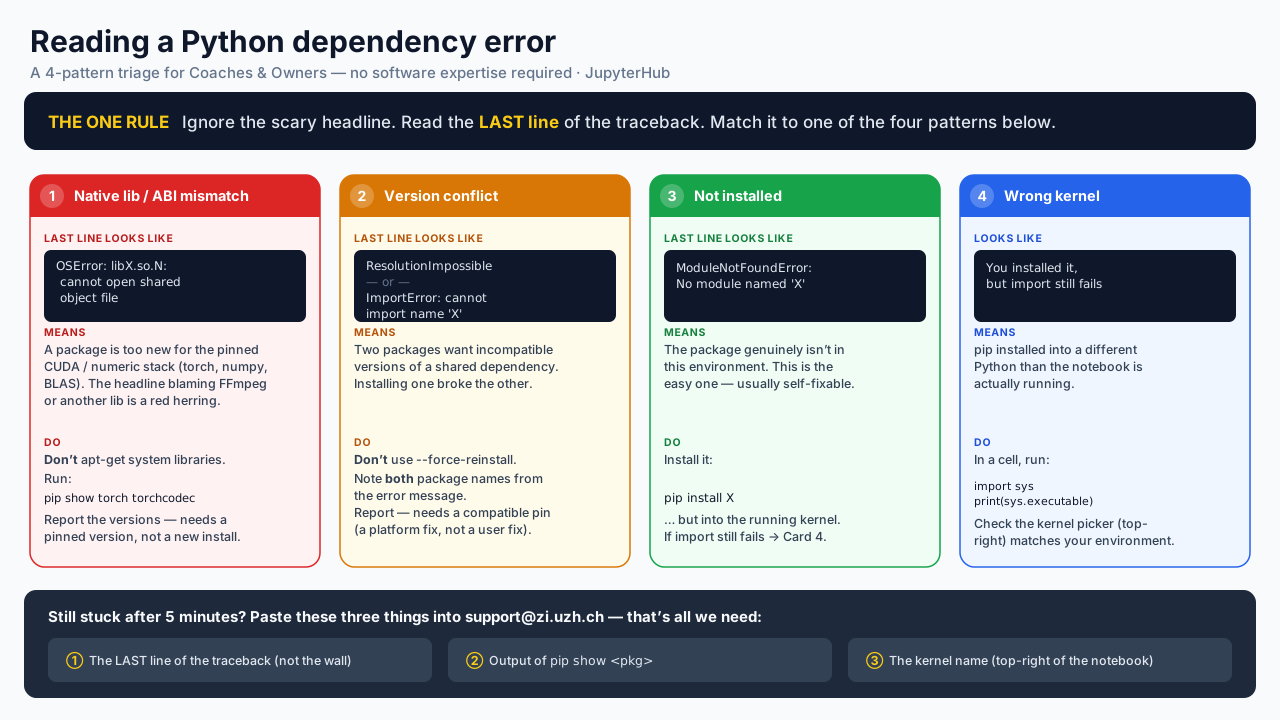
The four patterns
1 · Native library / ABI mismatch — platform fix
Last line looks like
OSError: libX.so.N: cannot open shared object file
What it means. A package is too new for the pinned CUDA / numeric stack (torch, numpy, BLAS). The headline blaming FFmpeg or another library is a red herring.
Do. Don’t apt-get system libraries and don’t upgrade torch. Run:
pip show torch torchcodec
Report the versions — this needs a pinned version at the platform level, not a new install.
This is exactly what happened in the Computational Linguistics course: “Exercise 2 fails, FFmpeg is not properly installed” was really a
torchcodecbuild compiled against a different CUDA than the pinnedtorch. The course image now pins the CUDA/numeric stack (viaPIP_CONSTRAINT) and ships FFmpeg, so this whole category of error can no longer occur — but the pattern is worth recognising when a new package is pulled in.
2 · Version conflict — platform fix
Last line looks like
ResolutionImpossible
— or —
ImportError: cannot import name 'X'
What it means. Two packages want incompatible versions of a shared dependency; installing one broke the other.
Do. Don’t use --force-reinstall. Note both package names from the error message and report them — this needs a compatible pin (a platform fix, not a user fix).
3 · Not installed — usually self-fixable
Last line looks like
ModuleNotFoundError: No module named 'X'
What it means. The package genuinely isn’t in this environment. This is the easy one.
Do. Install it — into the running kernel:
pip install X
On the course images this installs into your persistent ~/.local directory by default (see Extending your environment), so it survives restarts and is available to the base-environment kernel. If the import still fails after installing, go to Card 4.
4 · Wrong kernel — self-fixable
Looks like. You installed the package, but the import still fails.
What it means. pip installed into a different Python than the notebook is actually running.
Do. In a cell, run:
import sys
print(sys.executable)
Check that the kernel picker (top-right of the notebook) matches the environment you installed into. See Python environments for how kernels map to environments.
Extending your environment
If you just need an extra package, pip install X is enough — on the course images it lands in your persistent ~/.local and is picked up by the base environment. For an isolated, reproducible setup (a clean, separately-registered kernel), create a virtual environment instead. Both approaches are described in Python virtual environments and kernels.
Still stuck? How to report it
If you’re still stuck after five minutes, paste these three things into an email to support@zi.uzh.ch — that’s all we need:
- The last line of the traceback (not the whole wall).
- The output of
pip show <pkg>for the package in question. - The kernel name (top-right of the notebook).
👩🎓 Participants: For patterns 1 and 2 (platform fixes), report to your Coach or Course Owner first — they can escalate to ZI if needed.